
ERROR#310: Unsupported sample rate settings detected
This article contains troubleshooting informationERROR#310: Unsupported sample rate settings detected
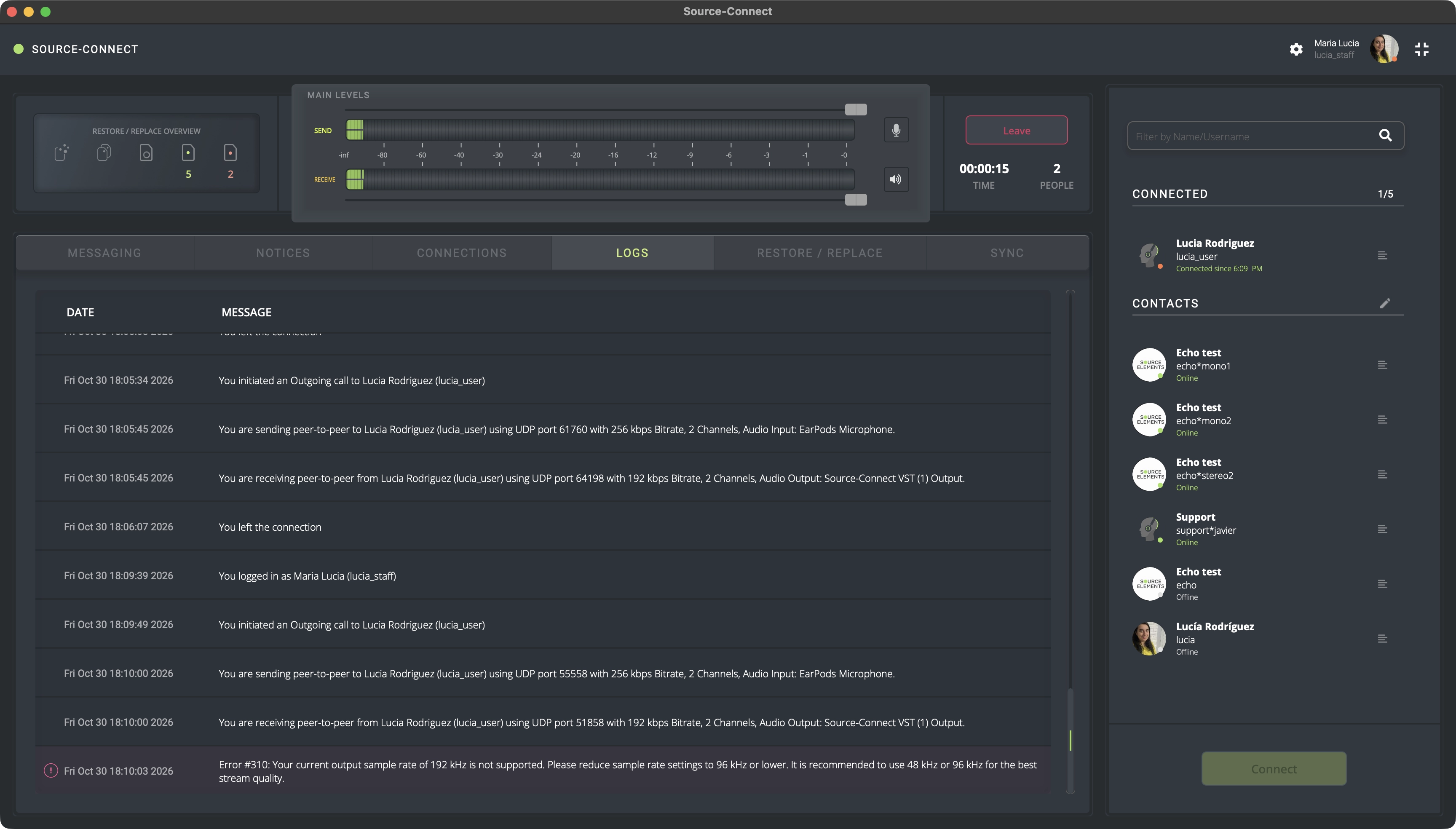
Your current output sample rate of {output device sample rate value} is not supported. Please reduce sample rate settings to 96kHz or lower. It is recommended to use 48khz or 96khz for the best stream quality.
Source-Connect | Version 4 | All Operating Systems
Description
When users select an output device and start a session, they get the following error message:
Reason
The sample rate for your output device is above 96khz.
Actions
In order to adjust your device's sample rate:
On macOS
To change the sample rate for your device on Mac:
- Go to the Audio MIDI Setup application.
- Click the name of your input device in the left panel of the Audio MIDI Setup window (for example, “Macbook Pro Speakers").
- Click the “Format” dropdown menu.
- Select the sample rate you want to use.
- Repeat the steps for your output device.
On Windows
To change the sample rate of your device on Windows:
- Type in “Sound Settings” into the Windows search bar or the start menu.
- Click “More Sound Settings” (Windows 11) or Device Properties (Windows 10 or older).
- Under “Playback”, double click the name of your input device.
- Go to the “Advanced” menu.
- Open the dropdown in the “Default Format” section and choose the sample rate you want to use.
- Click “Apply”
- Repeat the same steps in the “Recording” section.
If the problem persists, contact Support.
Table of Contents